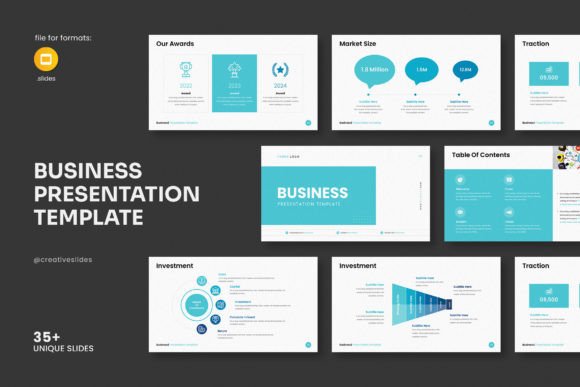
Business Google Slides Presentation Template: From Planning to Presentation
The moment you need to share a company profile, pitch a new project, or report quarterly results, the quality of your visual materials directly influences how your message is received. A well-structured presentation can clarify complex ideas, keep audiences engaged, and reinforce your professional credibility. The Business Google Slides Presentation Template exists to eliminate the friction between raw ideas and a polished slide deck. Instead of starting from a blank canvas or wrestling with inconsistent formatting, you work inside a pre-built system that handles layout, typography, and visual harmony. This article looks at how this template fits into real workflows, where it saves time during content preparation, how it interacts with the tools you already use, and what makes it a durable asset for ongoing business communication.
Understanding the Template’s Role in a Broader Process
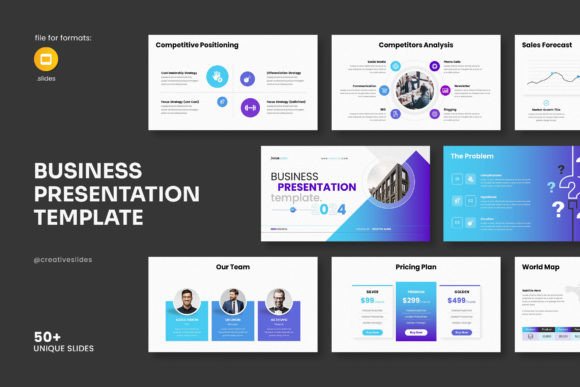
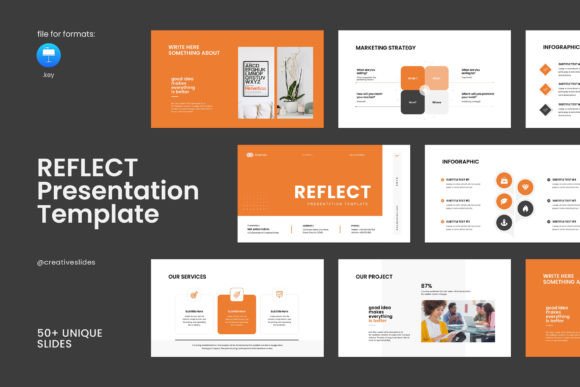
Every business message goes through a sequence—clarifying the objective, gathering data, structuring the narrative, designing the slides, rehearsing, and finally delivering. The template sits at the intersection of content and design, removing the need to make dozens of small aesthetic decisions. With 36 master-based slides, a 16x9 Full HD ratio, and a theme color option, it provides a consistent visual framework. You are not forced into rigid storytelling; instead, you select from slide layouts that suit your content—infographics, tables, timelines, photo collages, diagrams, and vector icons. This range means you can map a strategic plan, showcase product features, present financial data, or tell a brand story without ever leaving the document’s visual language.
Because the template works in both Google Slides and PowerPoint (PPTX), it adapts to the platform your team or client prefers. For remote teams that live in Google Workspace, real-time collaboration is straightforward. For clients who request .pptx files, you simply download and continue. This dual compatibility removes the usual conversion headaches and keeps the process fluid.
Preparing Your Content with the Template in Mind
Before you touch the template, you need a clear message hierarchy. Start by answering three questions: What does the audience need to know? What do you want them to feel? What action should they take afterward? These answers become the backbone of your slide sequence. Once you have a rough outline, you map each talking point to a slide type. The template’s variety makes this mapping intuitive. For instance:
- Use creative photo layouts early in the deck to build emotional connection or show real-world context.
- Place infographics where abstract processes or comparisons need visual simplification.
- Insert tables and charts for data-heavy sections where precision matters.
- Apply diagrams when illustrating relationships, hierarchies, or workflows.
Gathering your assets—logos, brand colors, high-resolution images, icons, and text content—before you begin the design phase speeds everything up. While the demo images are not included, the template packs a bonus 4000-icons set that covers a wide spectrum of concepts. That icon library becomes a replacement for generic clip art and helps maintain a consistent visual weight across all slides. When you have your assets ready and a clear content structure, you can build a complete 20–30 slide deck in a fraction of the time it would take to design slides from scratch.
Integrating the Template into Daily Workflows
One of the least discussed but most valuable aspects of a template is how it settles into routine use. Many professionals switch between multiple tools—Google Drive for storage, Slack for communication, Figma or Canva for quick graphics, and various project management apps. The Business Google Slides Presentation Template works as the presentation layer that glues these pieces together during reporting and pitching cycles.
Consider a marketing team that runs a monthly performance review. The data lives in Google Sheets; the key insights are discussed in a shared document. With the template stored in the team’s Google Drive, anyone can duplicate it, import charts from Sheets, drop in summary text, and customize the deck without waiting for a designer. Because the master slides carry the theme settings—fonts, colors, placeholders—brand consistency is automatic, even when five different people contribute slides. The drag-and-drop image replacement feature prevents accidental distortion of placeholders, keeping the layout intact. This reliability reduces the back-and-forth that typically happens when multiple hands touch a presentation.
In a freelance or agency context, the template serves a similar purpose during client-facing deliverables. A pitch deck that looks custom-made often wins confidence, but a freelancer rarely has hours to design from zero. By adapting the template to each client’s colors and logo, you deliver high-end visuals while dedicating your time to the narrative and data—which are ultimately what drive decisions. The template simply removes the design bottleneck.
Maximizing Visual Communication Without Advanced Skills
Not everyone who needs an impressive presentation has a background in graphic design. The template’s value lies in turning good content into good slides through intelligent constraints. All graphic elements are resizable and editable, so you can fine-tune infographics or diagrams to match your exact data story. The chosen free fonts come with a link in the help file, ensuring that when you share the file, the typography renders correctly on any system—no missing fonts or shifted text boxes.
When building narrative flow, avoid the trap of overloading slides. The template’s clean design encourages negative space. Use the built-in vector icons to replace lengthy bullet points. A single icon paired with a short headline often communicates faster than a paragraph of text. For example, a timeline slide can map a product launch sequence with minimal words, letting the visuals carry the pacing. The 16x9 Full HD resolution (1920x1080px) guarantees that when you present on a large screen or share a PDF, every detail stays crisp.
Pay attention to the theme color option. Even a small shift—swapping the default accent hue for your brand’s primary color—can make the entire deck feel proprietary. Because the change propagates through the master slides, you achieve a branded look in minutes, not hours. This is particularly useful when a company acquires the template for its team: one person sets the palette, and everyone else inherits a ready-to-use brand environment.
Ensuring Consistency Across Teams and Projects
Prolonged use of a template across departments often exposes a hidden problem: people tweak things until consistency breaks. To avoid this, treat the template file as a master copy. Store it in a shared drive with read-only access, and instruct team members to make a copy for each new project. The master slides become your control layer. Educate contributors to edit content inside the provided placeholders rather than creating new text boxes. This simple rule keeps font sizes, line spacing, and alignment intact.
For organizations that produce multiple types of presentations—internal training, external sales, executive summaries—the template can be customized into variants. Because you have 36 slide layouts, you can delete the ones you never use and save a streamlined version for each purpose. The PPTX format allows this without losing any editability. Over time, this creates a system where the visual language remains unified, even as the specific message changes. Clients and stakeholders begin to recognize the consistency, which strengthens brand recall and trust.
Working with Other Platforms and Tools
The template’s Google Slides and PowerPoint compatibility ensures it fits into most ecosystems. If your workflow relies on Microsoft 365, the PPTX version integrates with OneDrive and SharePoint, enabling co-authoring in the desktop or web app. On a Mac, Keynote users can import the PPTX file with minor adjustments, though staying within Google Slides or PowerPoint yields the most predictable results.
For content that originates elsewhere—like analytical dashboards in Looker Studio or Tableau—you can take clean screenshots or export PNG/SVG charts and drop them into the template’s image placeholders. The drag-and-drop picture change feature respects the original frame proportions, so you avoid awkward cropping. Similarly, when embedding video, the template’s layouts accommodate multimedia without breaking the slide’s grid. This flexibility means the template acts as a central canvas into which disparate content streams flow.
Export options also matter. When you need a leave-behind document, you can save the deck as a PDF straight from Google Slides or PowerPoint. The vector icons and high-resolution graphics remain sharp, making the PDF suitable for print or email distribution. If you need to share the presentation as a link for virtual meetings, Google Slides’ built-in publishing and presenting features work seamlessly, and the audience sees exactly what you designed, with no missing elements.
Practical Tips for Long-Term Use and Updates
A template is not a static purchase; it’s a resource that should evolve with your needs. The help file included in the PDF offers guidance, but beyond that, a few habits will keep the template effective over months and years:
- Periodically review your slide library. As your business grows, you might need new layouts. Since the template is fully editable, you can duplicate an existing master slide and tweak it to fit a new content type without starting over.
- Keep the icon pack organized. The 4000 icons are a significant resource. Import them into a dedicated slide or a separate library file so you can quickly search and drag the right icon into your deck. This saves from scrolling through folders each time.
- Back up your branded version. Once you adjust colors, fonts, and maybe add your logo to the master slides, save this as a separate file. Label it clearly with the date and version number. This becomes your new starting point for all future decks.
- Train collaborators briefly. A 15-minute walkthrough on how to use the master slides, replace images, and apply the theme will dramatically reduce formatting errors and support requests. If you’re a freelancer, include a quick guide for your client when you hand over the editable file.
Since the template uses free fonts and provides the necessary links, you won’t run into licensing issues. However, verify that the fonts are installed on any machine that will edit the file offline. In Google Slides, the fonts pull from Google Fonts, so they remain consistent across devices. In PowerPoint, you may need to install them once, but the help file covers the process.
Quality Control and the Final Review
Even with a robust template, the last mile matters. Before presenting, run a quick quality check. Scan through every slide to ensure that placeholder text has been replaced, that images are not pixelated (use high-res assets), and that any imported charts retain their readability against the slide background. The template’s design is built to maintain contrast and readability, but heavy customization—like layering semi-transparent shapes over images—can occasionally affect legibility. Adjust as needed, but trust the underlying grid. A clean slide with strong hierarchy always outperforms a cluttered one.
If you are presenting virtually, test the deck on the platform you’ll use. Google Slides presents flawlessly in browser-based meetings. For PowerPoint, confirm that animations or transitions, if any, don’t lag on the presenting computer. The template itself is delivered without heavy animation, which is an advantage—minimal motion reduces compatibility risks and keeps focus on the content.
Finally, consider the audience you’re not seeing. Many presentations are forwarded as PDF attachments. Ensure that the exported PDF preserves the vector icons and that the page numbering, if used, is correct. The template’s consistent structure makes this final step almost automatic.
Why This Template Fits a Pragmatic Workflow
Professional presentations are rarely a one-person effort and almost never a single-use asset. The Business Google Slides Presentation Template maps to that reality. It is not merely a collection of attractive slides; it is a functional system that plugs into existing tools, reduces repetitive design work, and gives teams a shared visual language. From the initial content outline to the final exported PDF, it supports every stage without imposing a rigid creative straightjacket. The inclusion of editable graphics, vector icons, and master slide controls bridges the gap between a do-it-yourself approach and the polish you would expect from a dedicated design resource.
Whether you are preparing a quarterly investor update, a product launch deck, a training module, or a personal brand portfolio, the template turns the heavy lifting of slide design into a background process. You focus on what matters—clarifying your message and connecting with your audience—while the visual framework does its job quietly in the background.